Practical guide

How to use the current office build

This guide is for the actual `4.0.3` desktop build. It covers first-time setup, file handoff flow, sticky-note use, logs, and the path rules that matter for successful network dispatch.

Choose the build

1. Install the role that matches the user

  • Standard User: day-to-day staff build for file handoffs, reminders, sticky notes, and local logs.
  • Supervisor: dashboard-enabled build for oversight, deadline visibility, and role-aware monitoring surfaces.
  • Copy the EXE to the target PC and run it. No Python install is required on the destination machine.
What opens first

2. Use the tray icon as the control point

  • Launch the EXE and look for the Ohverlay tray icon near the Windows clock.
  • Right-click the tray icon and open Control Center.
  • Control Center is the main place for shared-folder setup, peers, cleanup, and runtime adjustments.
Setup screens

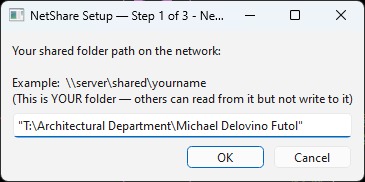
3. Configure your shared folder and peers

The two settings that matter most are your own shared folder and your peer list. If those are wrong, handoffs and notifications will fail even if the UI looks correct.

Path guidance

4. Use a stable network path

  • UNC paths such as \\server\share\username are the safest option when several users are involved.
  • Mapped drive paths can work if Windows can resolve them consistently and convert them back to the same network location.
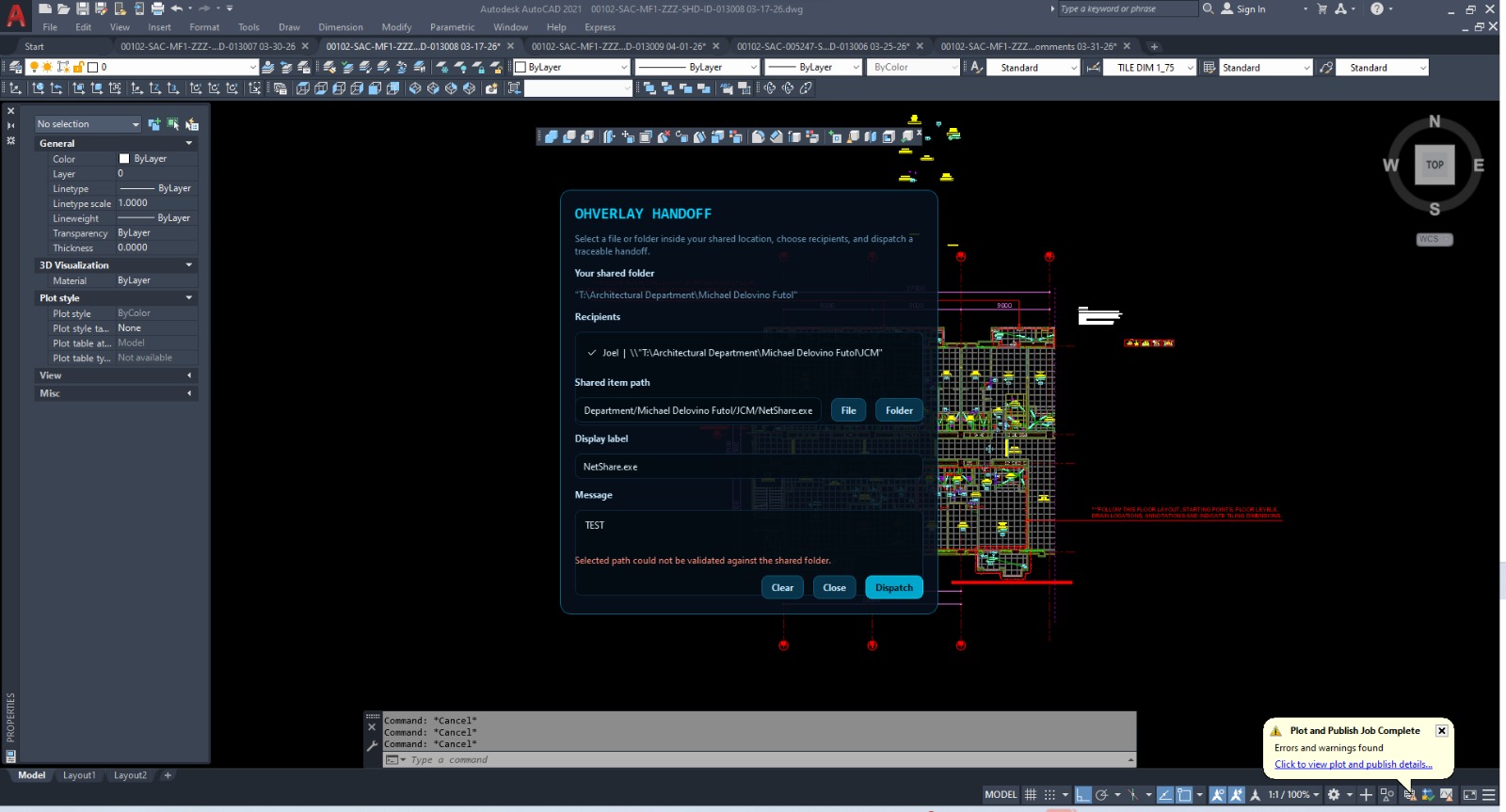
  • If the app says the selected path cannot be validated against the shared folder, the chosen file is outside the configured base folder.
Rule of thumb

Keep the file under your declared shared root

If your shared folder is `\\server\shared\michael`, then the chosen item should live inside that folder tree. Example valid selections:

  • `\\server\shared\michael\JCM\plan.dwg`
  • `\\server\shared\michael\handoff\revision-02\`

Example invalid selection:

  • `D:\Downloads\plan.dwg` when your configured shared folder is a different network location.
Daily workflow

5. Send a file handoff

01
Place the file in your shared folder

Keep the file or folder inside your configured shared location.

02
Open Create File Handoff

Choose the item, select one or more recipients, and add a display label or message.

03
Dispatch the handoff

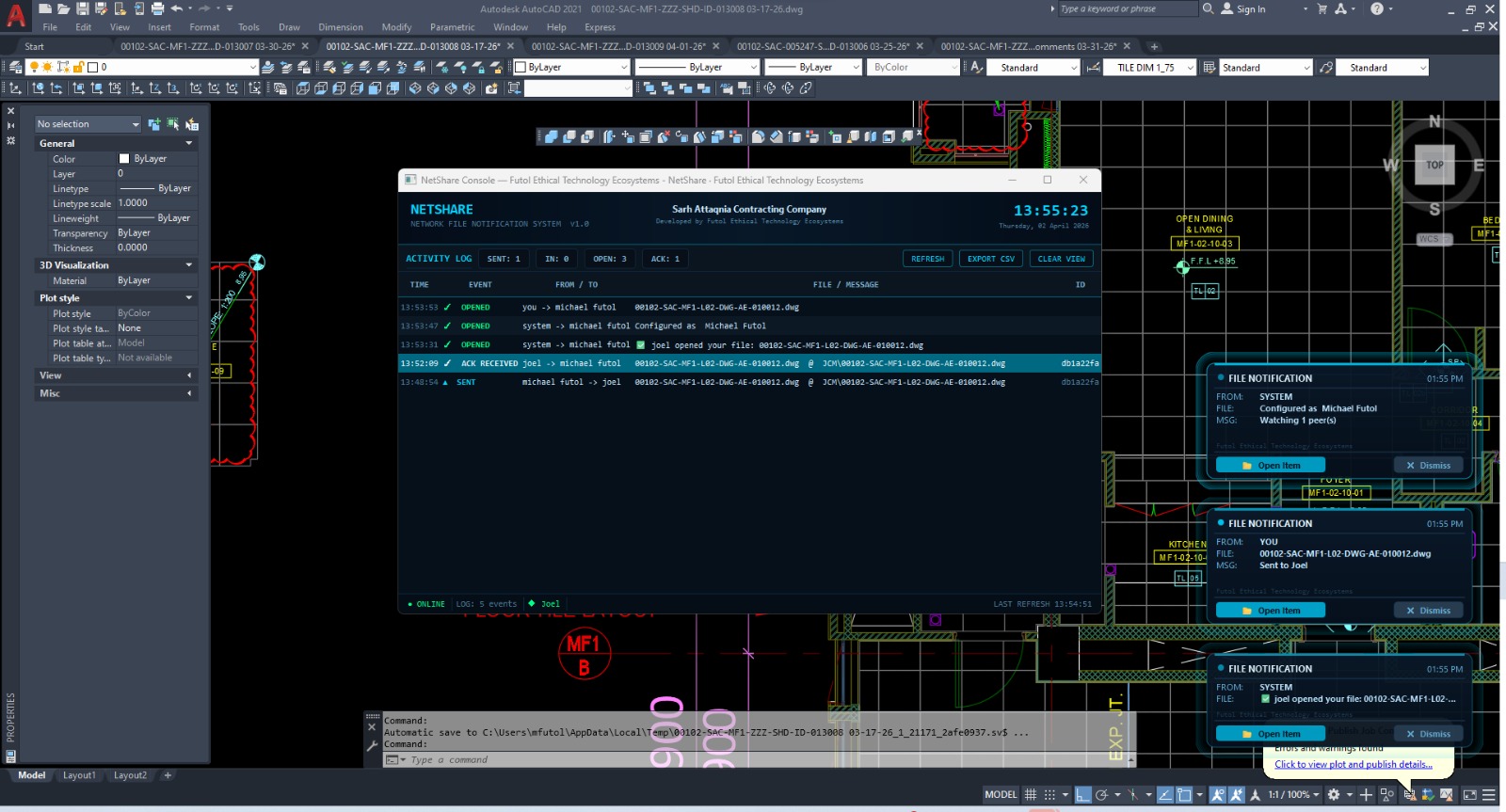
The peer receives an overlay notification. Clicking it opens the routed item or folder path.

Daily workflow

6. Use sticky notes and timers

  • Create multiple notes at the same time.
  • Use countdown mode for deadlines and elapsed mode for tracking active work.
  • Adjust transparency, theme, font scale, and lock state based on how much screen presence you want.
  • Locked notes are meant to stay visually present with less interference on the active program.
Logs and traceability

7. Check the activity record

  • The activity console shows sent, received, opened, acknowledged, and sticky-note events.
  • When `D:` exists, local data is written under D:\Ohverlay.
  • If `D:` is unavailable, the app falls back to the legacy profile-based location under the user profile.
  • Supervisor surfaces build on the same local-first event trail instead of a hidden external tracker.
Current limitations

8. What is still being refined

  • `https://ohverlay.com` is not yet ready because the domain certificate is still mismatched.
  • The app updater now uses `https://ohverlay.com/updates/manifest.json` as the canonical endpoint and keeps GitHub Pages only as a fallback.
  • Messaging, richer dashboards, and deeper supervisor views are in progress, not fully finished product tiers yet.